On this page
Leppa User Guide
Leppa gives every Slack channel a lifespan. Spin one up, and it archives itself when its time is up — unless someone extends it. No more graveyard of dead channels, no more manual tidying.
This guide covers everything you can do with Leppa: the /leppa command,
the channel lifecycle, templates, the admin dashboard, and answers to the
questions that come up most.
Getting started
Add Leppa to your workspace
- Go to app.leppa.io and click Continue with Slack.
- Approve the requested permissions. Depending on your workspace's settings, a Slack admin may need to approve the app.
- That's it — the
/leppacommand is now available to everyone in the workspace, and you land on the admin dashboard already signed in.
There's only one button because adding Leppa and signing in are one journey: whichever end you start from, Leppa walks you through the other. If you sign in to a workspace that hasn't got Leppa yet, it takes you straight to the install first; installing signs you in on the way back.
Installing Leppa is a one-time, whole-workspace action. Individual members
don't need to do anything to start using /leppa.
What Leppa can (and can't) see
Leppa is deliberately incurious. It knows about the channels it creates or is asked to adopt and their timers — nothing else:
- It never reads your messages (unless a workspace admin turns on the optional AI channel summaries — see below), and it never stores names, emails, or message content.
- It only manages channels it created (or was explicitly asked to manage). Your other channels remain unmanaged.
- Display names shown in the admin UI are fetched live from Slack and held in memory only.
The full details are in the Privacy & Data Policy.
The /leppa command
/leppa takes a verb that picks what you want to do. Type /leppa on its own
(or /leppa help) to see them all:
| Command | Does |
|---|---|
/leppa new |
Opens the create form — a Slack dialog with all the fields. |
/leppa create … |
Creates a channel inline from the grammar below. |
/leppa adopt [duration] |
Starts auto-archiving the current existing channel. |
/leppa summary |
Posts an on-demand AI summary of the current channel. |
/leppa settings |
Replies with a link to your workspace settings in the web admin. |
/leppa templates |
Replies with a link to manage templates in the web admin. |
summary also accepts the older spellings summarise and summarize.
Slack autocomplete has one entry: /leppa. Choose an action by adding a verb,
such as /leppa new or /leppa adopt 7d.
Creating a channel
/leppa create follows one shape (and, for old muscle memory, you can drop the
create and just type /leppa #name …):
/leppa create [template] [#channel-name] [duration] [@people or @usergroups] ["welcome message"]
| Part | Example | Notes |
|---|---|---|
template |
release |
Optional. A saved template's key. Must come first, if present. |
#channel-name |
#release-foo |
Required without a template, optional with one (it's appended to the template's name). Lowercase; max 80. |
duration |
14d |
Optional. How long until it archives. Defaults to 7 days. |
@people |
@alice @oncall |
Optional. People and user groups to auto-invite. |
"welcome message" |
"Be nice here" |
Optional, in quotes, at the end: posted by Leppa right after creation, overriding the template's welcome text. |
If you'd rather click than remember the grammar, /leppa new opens a Slack
dialog with the same fields (name, template, duration, invitees, welcome
message). /leppa summary posts an on-demand AI summary of the current
channel — see
AI channel summaries.
Adopting an existing channel
In the public channel you want Leppa to manage, run:
/invite @leppa
/leppa adopt 7d
Any member can adopt the channel they invoke the command in. Omit the duration to use the workspace default. The countdown starts at adoption, using the workspace's warning and summary settings. Leppa posts an intro and the channel appears in the dashboard with the usual Extend, Keep and Archive controls. The person adopting it becomes its owner in Leppa.
The channel keeps its name, topic, purpose, members and history; templates and name prefixes are not applied. Running adoption again leaves its deadline unchanged. To change it, use Extend.
Private, archived, general, shared and frozen channels cannot be adopted. Channels already kept permanently or archived by Leppa cannot be re-adopted.
Durations
A duration is a number followed by a unit:
| Unit | Means | Example |
|---|---|---|
d |
days | 14d |
h |
hours | 48h |
w |
weeks | 2w |
The number must be greater than zero. If you leave the duration off, Leppa uses your workspace's default (7 days out of the box, or whatever an admin has set).
The channel prefix
So ephemeral channels stand out from ordinary ones in the sidebar, Leppa
prepends a short prefix to every channel name — - out of the box, so
/leppa #standup creates #-standup. Admins can change the prefix (or turn it
off) workspace-wide in Settings, and each template can override it with its
own. If an allowed-names policy is configured, it checks the name you asked
for, before the prefix is added.
Examples
/leppa #release-foo
Creates #-release-foo (default prefix + your name) with the default 7-day
timer.
/leppa #incident-42 48h @oncall
Creates #-incident-42, archives it in 48 hours, and invites the @oncall
user group.
/leppa release #foo-launch @alice
Applies your release template (name pattern, welcome message, default
invitees, duration) and also invites @alice. The typed #foo-launch still
lands in the name: patterns that use {input} place it themselves; any other
pattern gets it appended as a -foo-launch suffix. With a template you can
also leave the name off entirely — /leppa release — and the pattern names
the channel alone.
/leppa #warroom 3d "This channel self-destructs on Friday — decisions in the canvas please."
Creates #-warroom on a 3-day timer, and Leppa posts the quoted text as the
channel's first message.
If something's wrong
Leppa replies to you privately (only you see it) and explains the problem — a name that's already taken, an unknown template, a duration of zero, or a name with characters Slack doesn't allow. Fix it and run the command again; nothing is created until the command succeeds.
The channel lifecycle
Every managed channel moves through a simple set of states. You'll see the same language in the reminder message and on the dashboard.
| State | What it means |
|---|---|
| Active | Newly created, clock ticking. Nothing for anyone to do. |
| Archiving soon | The warning has been posted — the deadline is near. |
| Extended | Someone pushed the deadline out. Still ephemeral, still on a clock. |
| Archived | Its time was up (or someone archived it early). History stays searchable. |
| Kept | Someone chose to keep it permanently — it's no longer managed by Leppa. |
The intro message
Right after creating a channel, Leppa posts a short message in it explaining what it's doing: when the channel will archive and when the warning will come. For a channel created without a template it describes the workspace default settings and includes a Customise settings button — tapping it swaps the message for the same extend / keep / archive controls the pre-archive warning offers, so you can adjust the channel's lifetime the moment it's created. For templated channels the message names the template instead (any welcome message the template defines is posted right after).
The pre-archive warning
A configurable lead time before the deadline (24 hours by default), Leppa posts a message in the channel so no one is caught off guard. It offers five buttons:
- Extend 7 days — push the deadline out a week.
- Extend 30 days — push it out a month.
- Custom duration… — enter a duration such as
12h,3dor2wto add to the current deadline (maximum two years). - Keep permanently — stop managing the channel; it will never auto-archive.
- Archive now — archive it immediately.
Anyone in the channel can tap a button. Once someone does, the message updates to show who acted and what happened, and the buttons disappear.
Extending re-arms the warning: an extended channel gets a fresh reminder before its new deadline — it will never archive without notice.
When a channel archives
Archiving in Slack hides the channel from the sidebar but keeps all its history — nothing is deleted, and anyone can unarchive it in Slack later. If you unarchive a channel Leppa was managing, Leppa notices and stops managing it (it won't re-arm the timer).
Templates
Templates capture the repeatable parts of channel creation so a single word on the command line sets everything up. They're managed by admins at app.leppa.io/templates.
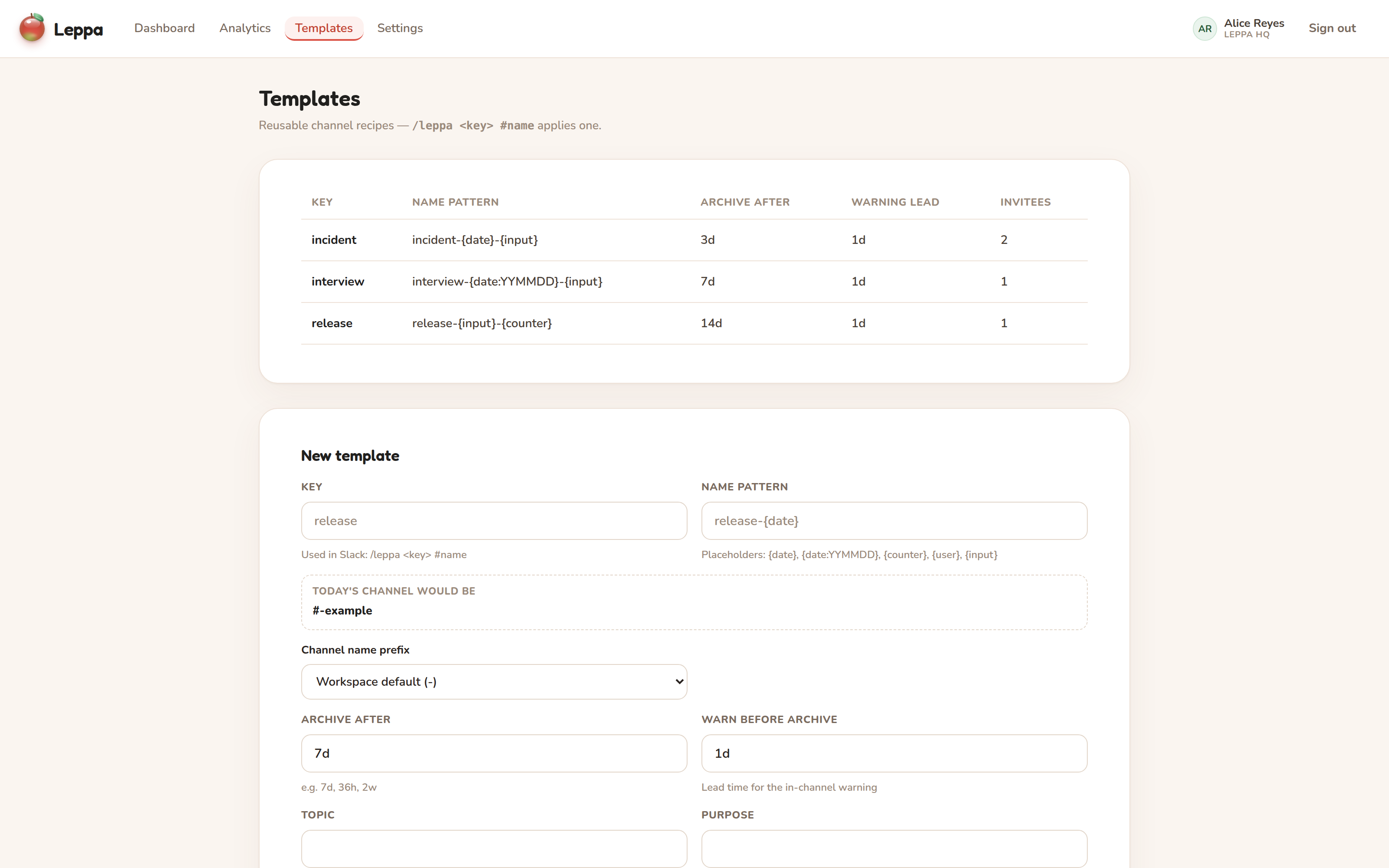
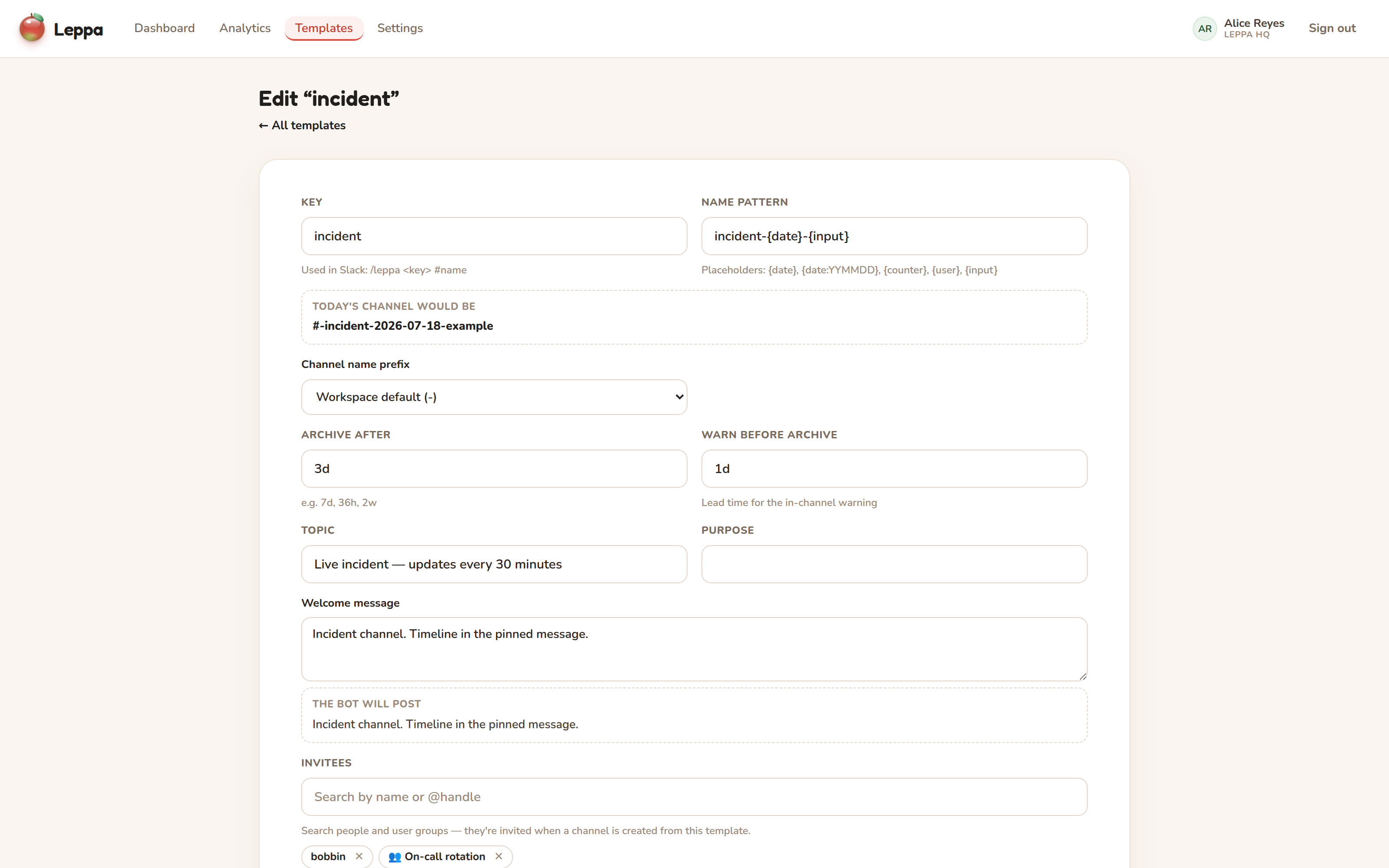
A template can define:
- A key — the word you type:
/leppa <key> #name. - A name pattern — how the channel name is generated (see below).
- A channel prefix override — use the workspace prefix (the default), no prefix, or a custom one just for this template's channels.
- A default duration and warning lead — used when the command doesn't give its own.
- A topic, purpose, and welcome message — set on the channel right after it's created. The welcome message is posted by the Leppa bot.
- Default invitees — people and user groups invited every time.
Name-pattern placeholders
A name pattern is a channel name with placeholders that Leppa fills in:
| Placeholder | Becomes | Example result |
|---|---|---|
{input} |
The #name you typed on the command |
foo-launch |
{date} |
Today's date, YYYY-MM-DD (UTC) |
2026-07-06 |
{date:FORMAT} |
A custom date; YYYY, YY, MM, DD tokens |
{date:YYMMDD} → 260706 |
{counter} |
A number that increments each time you use it | 1, 2, 3, … |
{user} |
The Slack handle of whoever ran the command | alice |
For example, a pattern of release-{input}-{counter} invoked as
/leppa release #foo produces #release-foo-1, then #release-foo-2 the next
time, and so on. Whatever the placeholders resolve to is cleaned up to fit
Slack's channel-name rules automatically.
A pattern that doesn't mention {input} still keeps the typed name: it's
appended to the resolved pattern as a hyphen-separated suffix (standup-{date}
/leppa standup #retro→#standup-2026-07-18-retro). Leave the#nameoff and the pattern stands alone; patterns that place{input}themselves do require a#name.
Scheduled channels
Any template can also create channels on a schedule — no slash command needed. On the template's edit page, add a schedule as a plain phrase:
every day at 9:00every weekday at 9am(Mon–Fri) orevery weekend at 10:00every monday at 9:00, or a list:every mon, wed and fri at 17:30every 1st of the month at 9:00(any day up to the 31st; months without that day are skipped)
Times can be written as 9, 9:30, 9am, 9:30pm, 17:00, noon, or
midnight, and each schedule has a timezone (IANA name like Europe/London;
blank means UTC) — daylight-saving shifts are handled for you. Schedules fire
within a few minutes of the target time.
Each firing works exactly like typing /leppa <key>: the name pattern
resolves (so the template needs {date} or {counter} in its pattern —
otherwise every run would produce the same, already-taken name — and can't use
{input}, since nobody typed one), the template's invitees are invited, and
the channel gets the usual topic, welcome message, and archive countdown. The
admin who created the schedule is recorded as the channel's creator and is
invited too.
You can add several schedules to one template, but not ones that would fight
over the same channel name. If the template's pattern has no {counter}, it
can only name one channel per day — so a second schedule that fires on any of
the same days is refused, naming the one it clashes with. Add {counter} to
the pattern if you want more than one channel a day from that template.
Schedules can be paused, resumed, and deleted from the same page, which also shows each schedule's next run and the outcome of its last one. A schedule that fails five runs in a row (for example, its usergroup was deleted) pauses itself and shows the last error; resuming it clears the slate.
The admin dashboard
Workspace admins and owners can manage everything from
app.leppa.io after signing in with Slack. (Non-admins
can sign in, but the management screens are admin-only.) The links Leppa posts
in Slack — /leppa settings, /leppa templates, the buttons on its Home tab —
take you to the right page and, if you aren't signed in yet, bring you back to
it once you are.
Dashboard
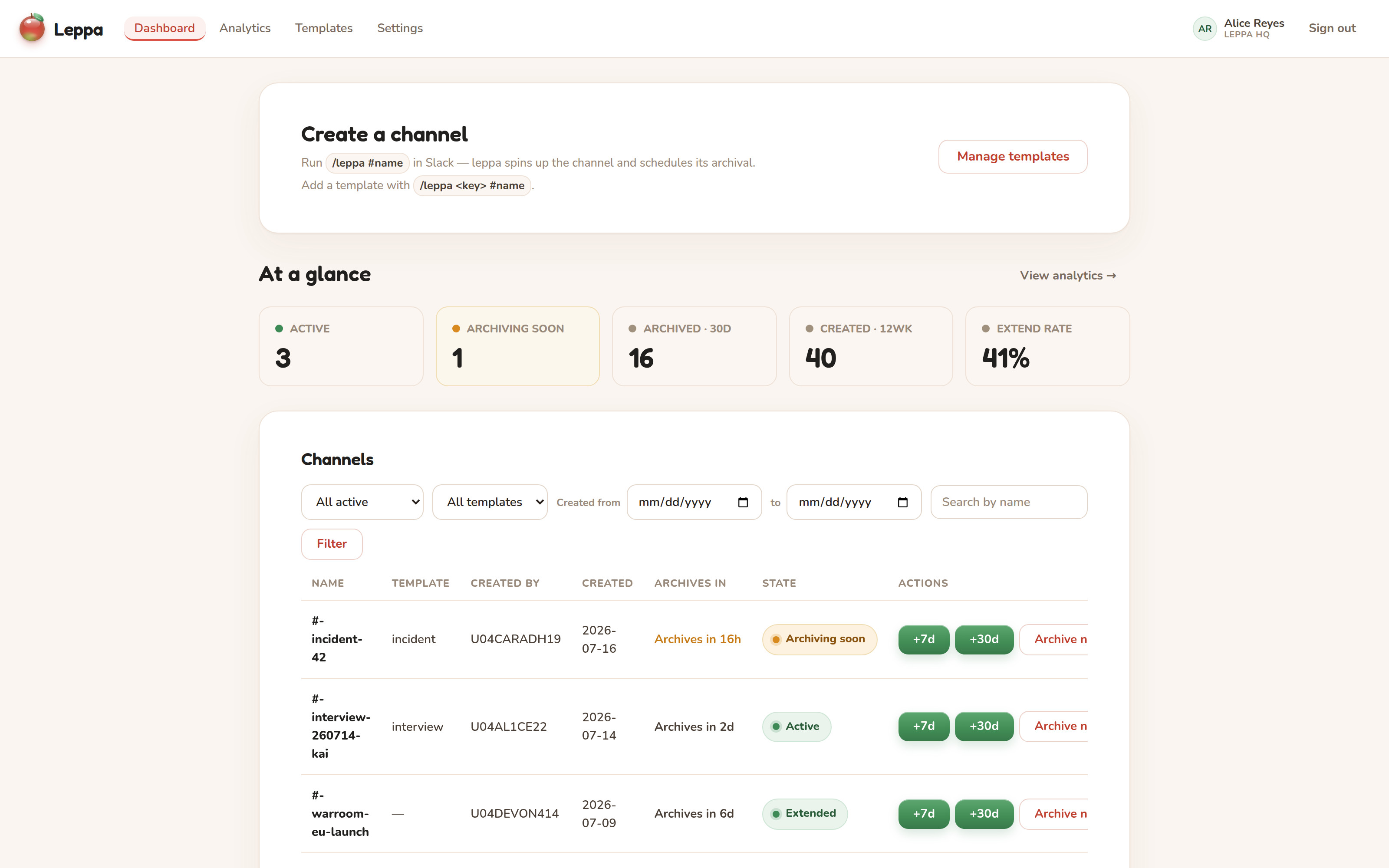
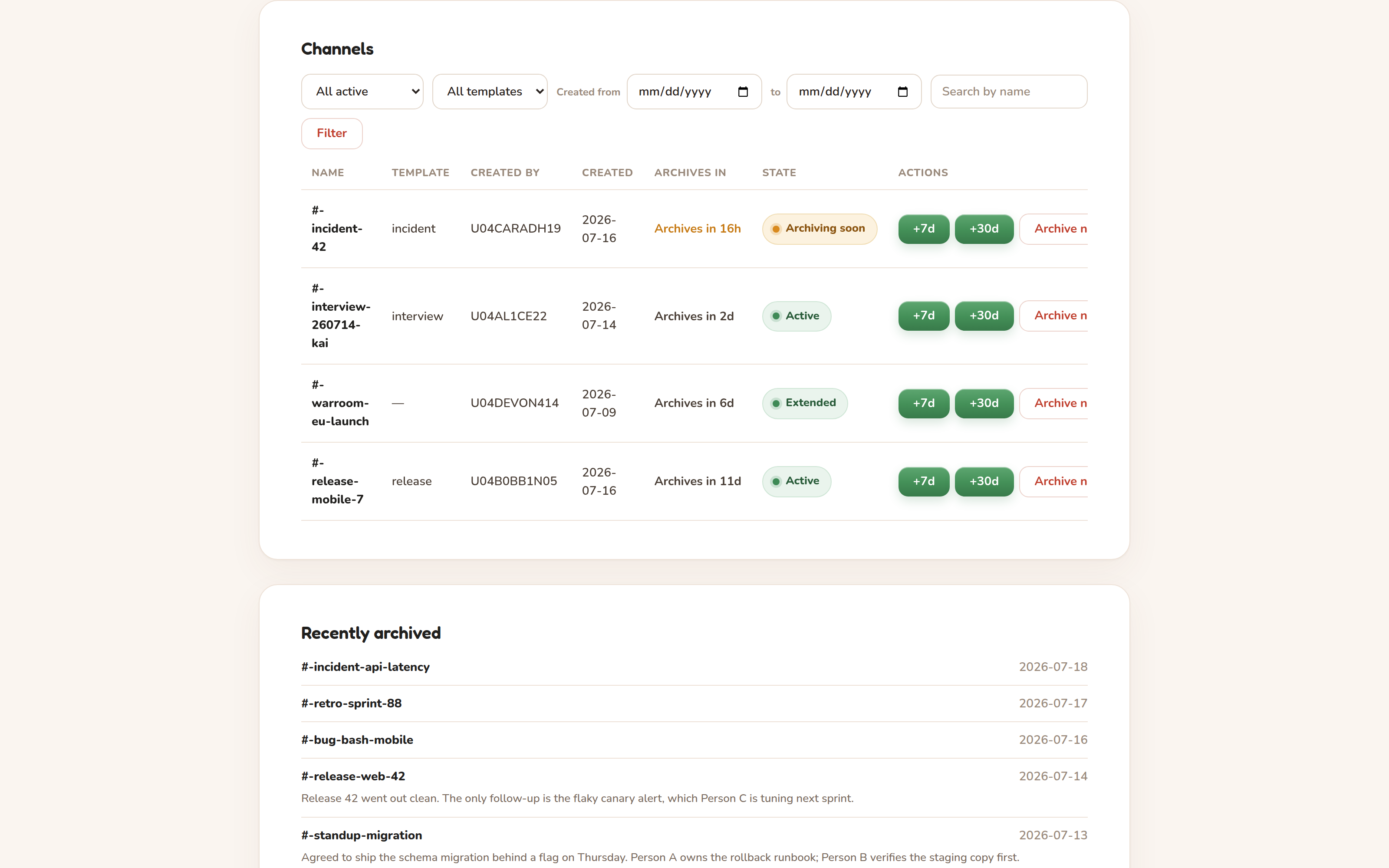
The dashboard is the first thing you see at app.leppa.io — it lists every managed channel: its name, template, who created it, when, how long until it archives, and its current state. You can filter by state or template, narrow to a created-date window, and search by name. The state filter uses the same labels as the table above; its default, All active, shows everything still on a clock (Active, Archiving soon, and Extended together). For each active channel you can:
- Extend it by 7 or 30 days,
- Archive now, or
- Keep it permanently.
These are the same actions as the in-channel warning buttons, just from the web. Archive now and Keep give you a few seconds to change your mind: the row fades and an Undo button counts down before anything actually happens.
Analytics
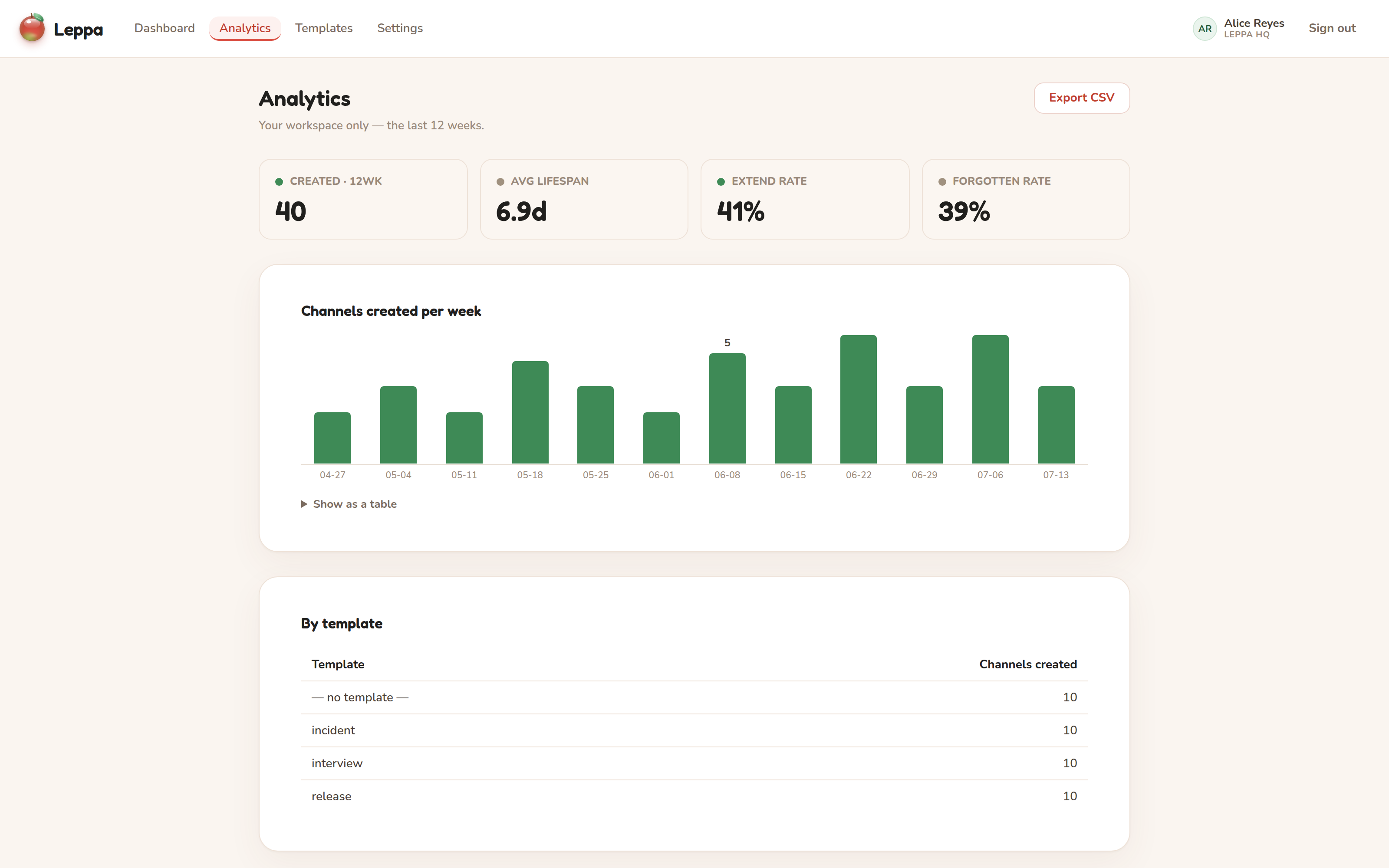
Analytics shows how your workspace uses Leppa over the last 12 weeks: channels created per week, which templates get used, and four headline numbers. So the numbers aren't ambiguous:
- Created — channels created inside the 12-week window.
- Avg lifespan — average days from creation to archive, over channels archived in the window (whenever they were created).
- Extend rate — of warnings that got a response (extend, keep, or archive), the share answered by extending. Warnings still waiting for a response count toward neither side.
- Forgotten rate — the share of auto-archived channels that were never extended at any point. Channels a person archived deliberately don't count.
Export CSV downloads the same summary and breakdowns as a flat spreadsheet-friendly file, named for the window's start date.
Workspace settings
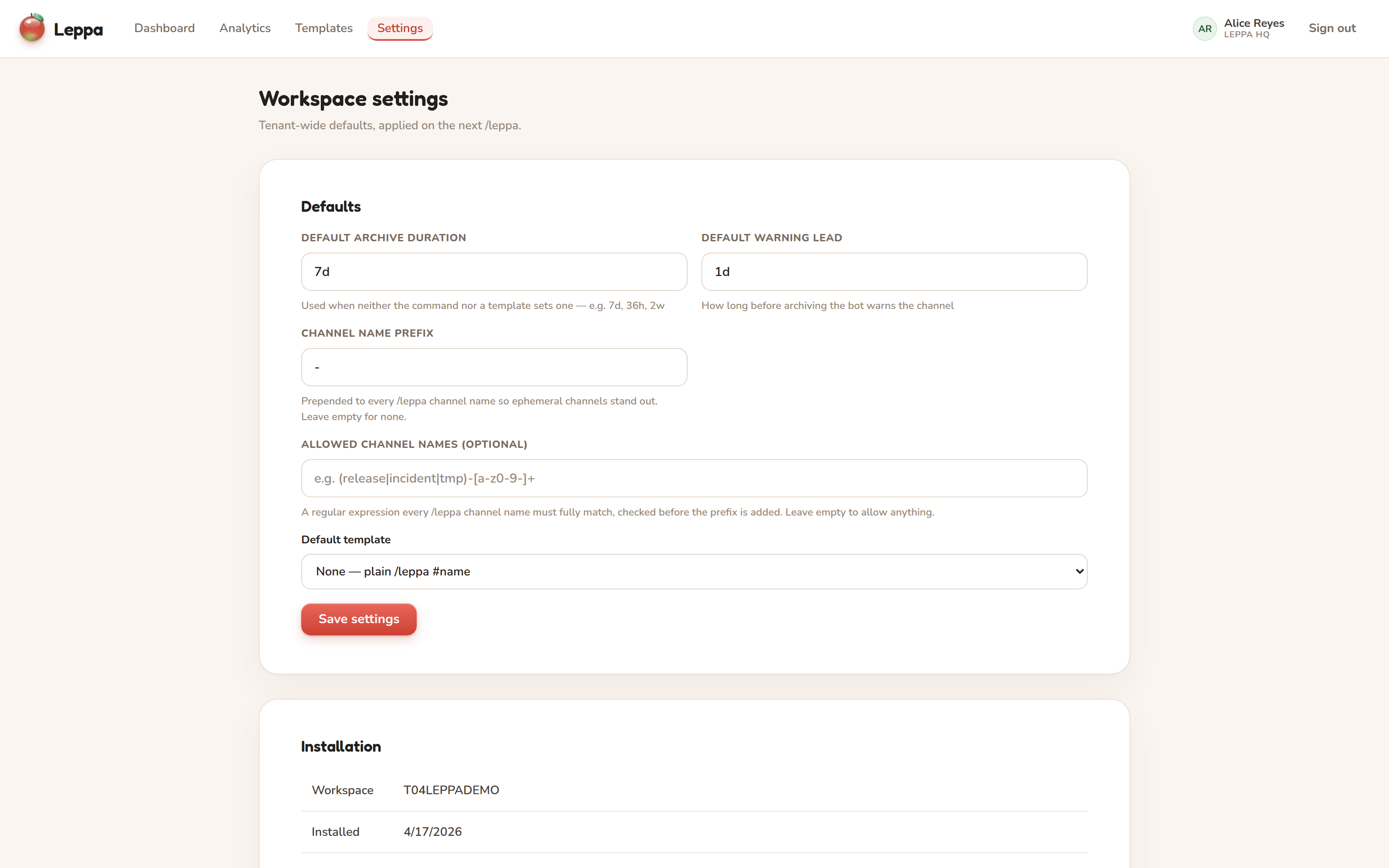
Under Settings you can set workspace-wide defaults:
- Default archive duration — used when a command gives no duration (e.g.
7d). - Default warning lead — how far ahead the reminder posts (e.g.
24h). It must be shorter than the default duration. - Channel name prefix — prepended to every
/leppachannel name so ephemeral channels stand out (-by default; clear it for none). - Allowed channel names (optional) — a regular expression every requested name must match, if you want to enforce a naming convention. It's checked against the requested name, before the prefix is added.
- Default template — applied when someone runs
/leppa #namewith no template key.
AI channel summaries (optional, off by default)
Shortly before a channel archives, Leppa can post a short AI-generated summary
of the conversation into it, and show it on the dashboard's "recently archived"
list. It goes in an hour ahead of the archive by default, so people can
actually read it — and act on it — while the channel is still in their sidebar.
You can also ask for one any time with /leppa summary in the channel
(if the feature is off, Leppa replies with where an admin can enable it).
It's off unless an admin turns it on, and enabling it is a deliberate,
two-part consent:
- You click Enable in Settings and approve one extra Slack permission
(
channels:history) — the permission that lets Leppa read messages. Until you do this, Leppa cannot read any message. - Summaries are generated by Cloudflare Workers AI (nothing leaves Cloudflare). The messages themselves are used only for that one request and never stored; the summary is produced from a pseudonymised transcript, so no names or handles are sent to the AI. When it's posted into the channel, the people who own a decision or follow-up are @-mentioned so they're notified; the copy kept for your dashboard stays pseudonymised.
Once it's on, two things in Settings are yours to choose:
- When it posts. An hour before the archive by default; set anything up to a week, or leave the field empty to go back to posting it as the channel's farewell message. Extending a channel moves the summary with it, and the summary never arrives before the "this channel is about to archive" warning.
- What it covers. Pick a style — actions and outcomes (the default: what was decided, what was done, what's still open), decisions only, one-liner, or a handover note for whoever picks the work up — or write your own instructions. Summaries are always written in the past tense, only from what was actually said, and never follow instructions found inside the conversation, whichever style you choose.
Turn it off any time from Settings; Leppa stops reading messages immediately.
Where /leppa summary works: in Leppa's own channels. Leppa summarises the
ephemeral channels it creates, not any channel you happen to run the command
in — it isn't a general-purpose assistant. Run it anywhere else and it says so
immediately, without reading a thing.
Within those channels, a summary runs on whatever's actually been said. There's no minimum message count: the only time Leppa declines is when the channel holds nothing but Leppa's own posts — its intro, its warning, and people joining. Thread replies count too, so a conversation that happened in threads still gets summarised.
Uninstalling
From Settings you can uninstall Leppa. This revokes the bot token and stops all channel management immediately. Your data is kept for a 30-day grace period — reinstalling within it restores your templates and settings — and then it's purged. See the Privacy & Data Policy for the full retention schedule.
FAQ & troubleshooting
"That channel name is already taken." Slack already has a channel (active or archived) with that name. Pick a different name, or unarchive and reuse the existing one in Slack.
The channel was created but some people weren't invited. Leppa still creates the channel and tells you who it couldn't add — usually guests, external accounts, or deactivated users. Invite them manually if needed.
The reminder never appeared / the channel didn't archive. Leppa needs to be in the channel to post the reminder and to archive it. If the bot was removed from the channel, add it back. If a channel was deleted in Slack, Leppa can no longer manage it.
Can I get a channel back after it archives? Yes — archiving never deletes anything. Unarchive it in Slack and all its history is there. (Leppa will stop managing it once it's unarchived.)
Who can change templates and settings?
Only workspace admins and owners. Everyone can use /leppa.
Does Leppa read our messages? No. Leppa stores channel IDs and timers, never message content, names, or emails. See the Privacy & Data Policy.
How do I delete our data? Uninstall Leppa — from Slack's app management page or from Leppa's Settings. Channel management stops immediately, and all stored data is purged after a 30-day grace period.